
Training Record Forms are how qualifications and compliance records are captured in Prestartr. Each Training Record is linked directly to a person's profile and feeds into the Training Matrix, giving you a real-time view of your workforce's compliance status. This guide walks you through creating a Training Record form from a person's profile.
Navigate to the Person's Profile
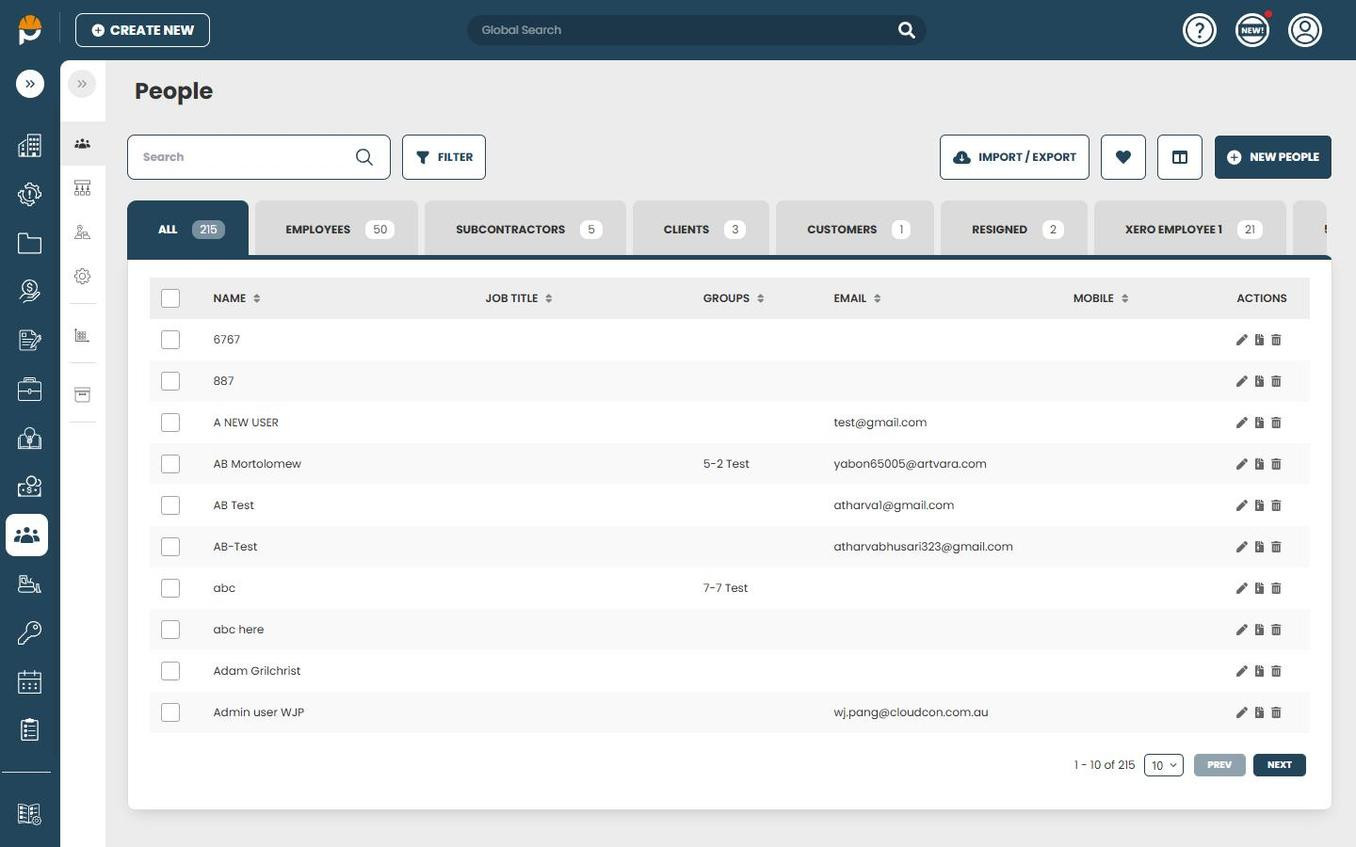
- Open the left sidebar and click People.
- Locate the person you want to add training for and click their name to open their profile.
Locate the Forms Section
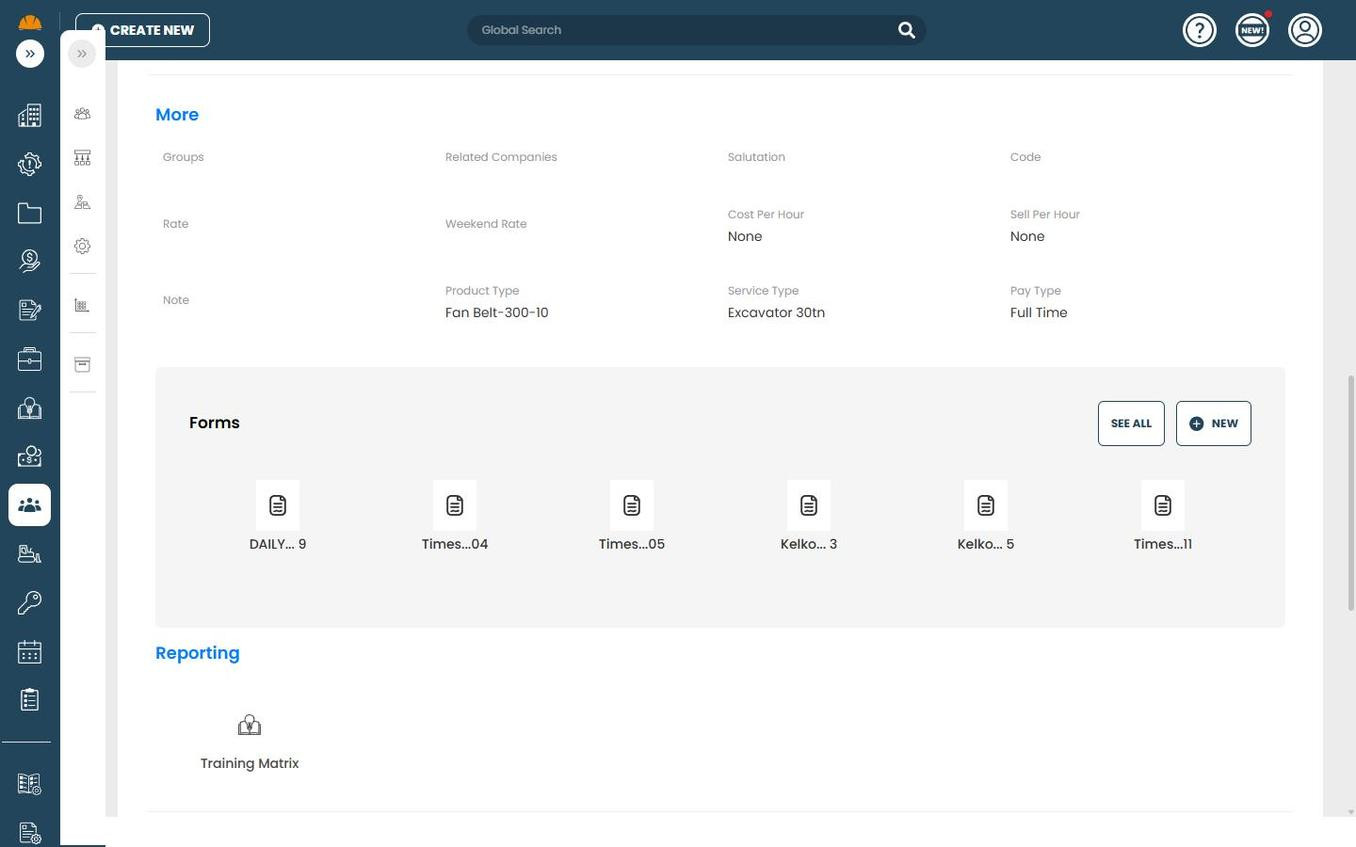
- On the person's profile page, scroll down until you reach the Forms section.
- This section shows all forms currently linked to this person, including any existing Training Records.
- Click NEW to create a new form.
Create a New Training Record
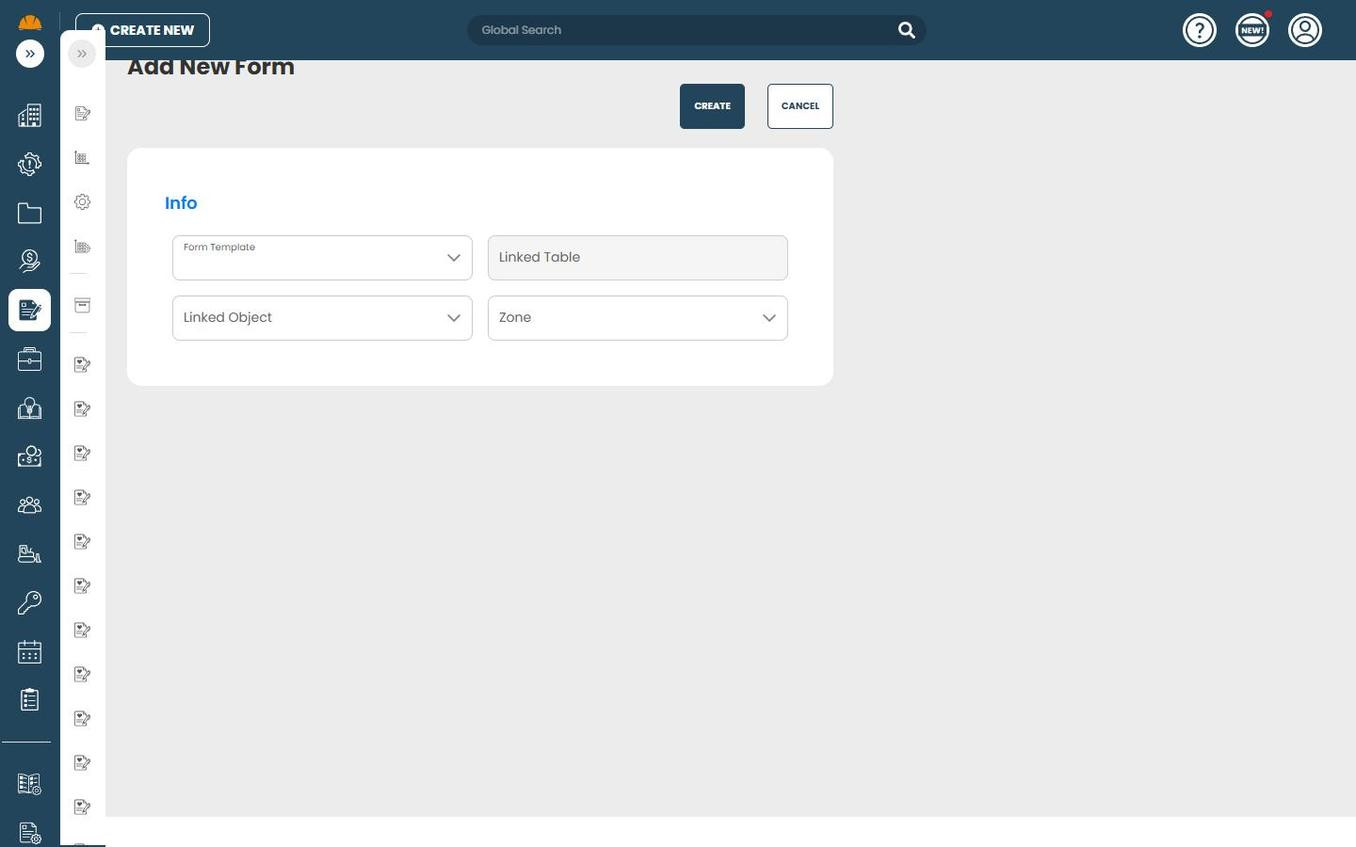
You will be taken to the Add New Form page. Fill in the following fields:
- Form Template — Search for and select Training Record from the dropdown.
- Linked Table — This auto-fills as people (no action needed).
- Linked Object — Select the person this Training Record is for.
- Zone — Select the appropriate zone (this field is required).
- Click CREATE to generate the draft Training Record form.
Complete the Training Record
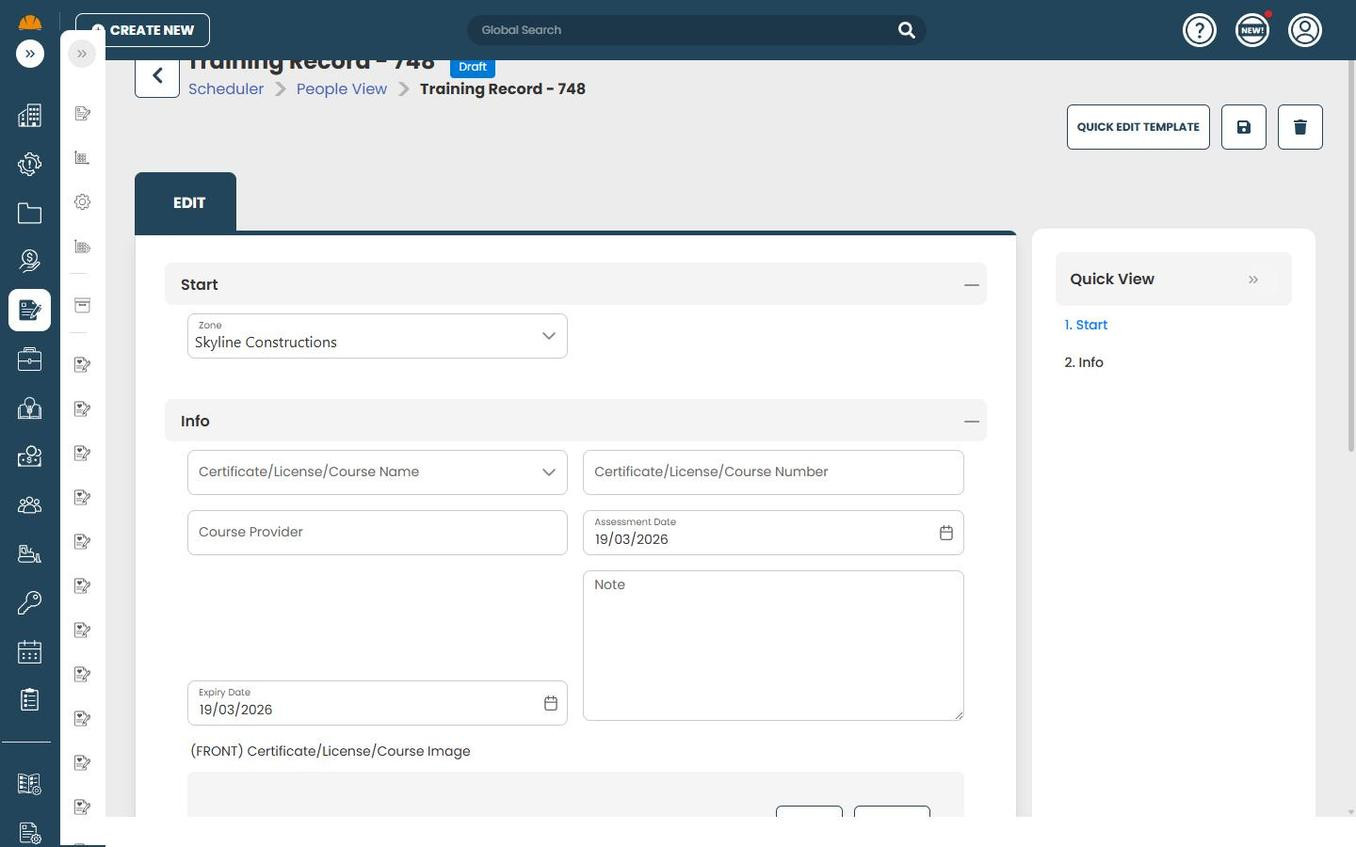
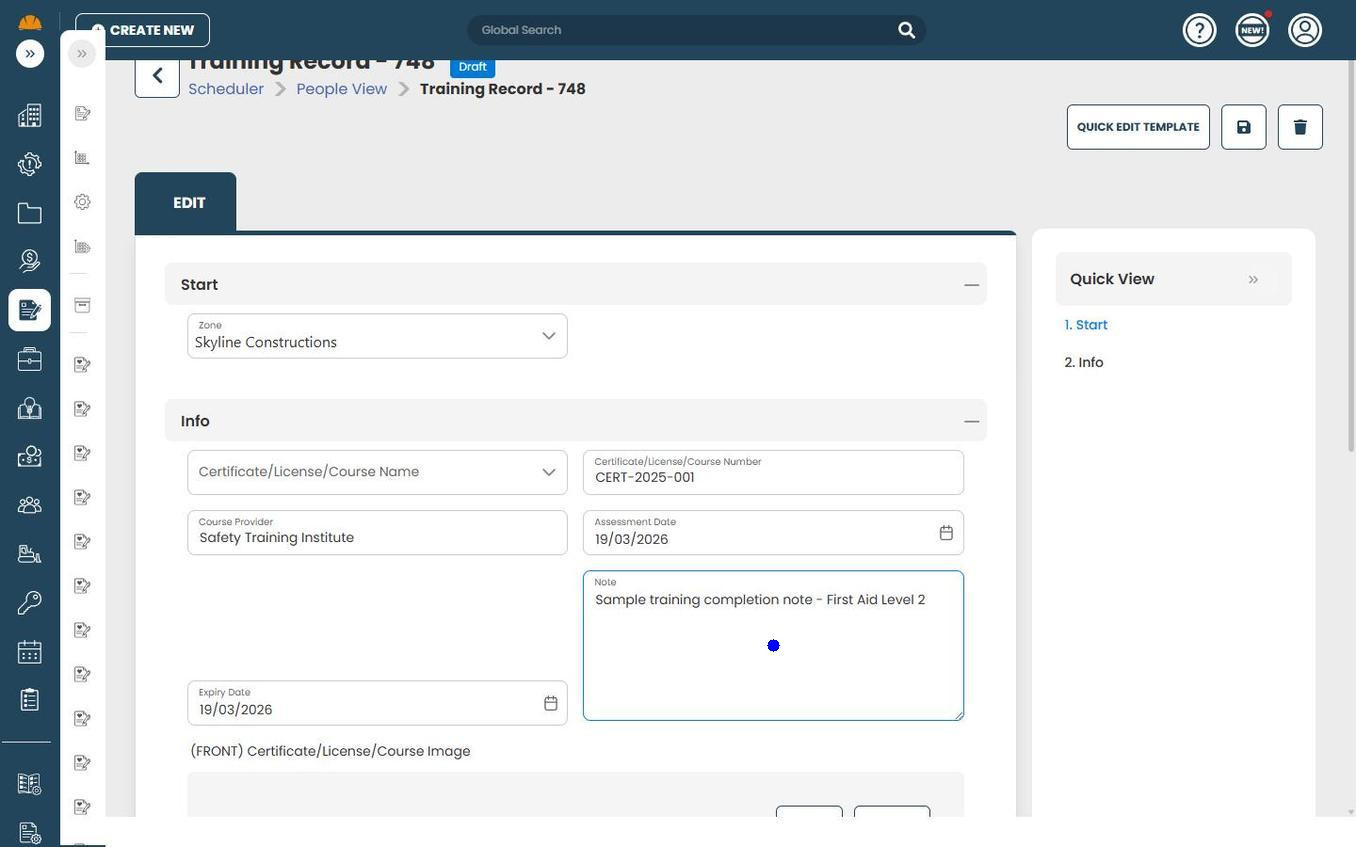
Once the form is created, fill in each field with the relevant details:
| Field | Type | Required | Description |
|---|---|---|---|
| Zone | Dropdown | Yes | The zone the qualification applies to. |
| Certificate/License/Course Name | Dropdown | Yes | Select the qualification from the catalogue (e.g., Construction Induction, Driver Licence Class C, Provide CPR). |
| Certificate/License/Course Number | Text | No | The certificate or license number issued by the training provider. |
| Course Provider | Text | No | The name of the organisation or individual who delivered the training. |
| Assessment Date | Date | No | The date the qualification was assessed or completed. |
| Note | Text area | No | Any additional notes or context about this qualification. |
| Expiry Date | Date | No | The date the qualification expires. Critical for compliance tracking — notifications can be triggered based on this date. |
| (FRONT) Certificate/License/Course Image | File upload | No | Upload a photo or scan of the front of the certificate or license. |
Save the Training Record
- Once all relevant fields are completed, click the Save button (disk icon) in the top-right corner of the form.
- The Training Record will be saved and linked to the person's profile.
- The qualification will appear in the person's Training Matrix, contributing to compliance visibility across your workforce.
Tip: Always ensure the Expiry Date is set correctly when the qualification has a fixed validity period. Prestartr uses this date to drive compliance notifications and colour-coded status indicators in the Training Matrix — leaving it blank may mean upcoming expirations go undetected.