
Payment Terms Catalogue
The Payment Terms Catalogue defines the available payment term options across Prestartr. These terms are used in Company records, Invoices, Purchase Orders, and any integration that syncs financial data (e.g., Jobpac).
This article covers how to access the catalogue, the available payment terms, and how to create, edit, and remove them.
Accessing the Payment Terms Catalogue
To access the Payment Terms Catalogue:
- From the left sidebar, click Catalogues (under Settings).
- In the Catalogue sidebar, scroll to Payment Terms and click it.
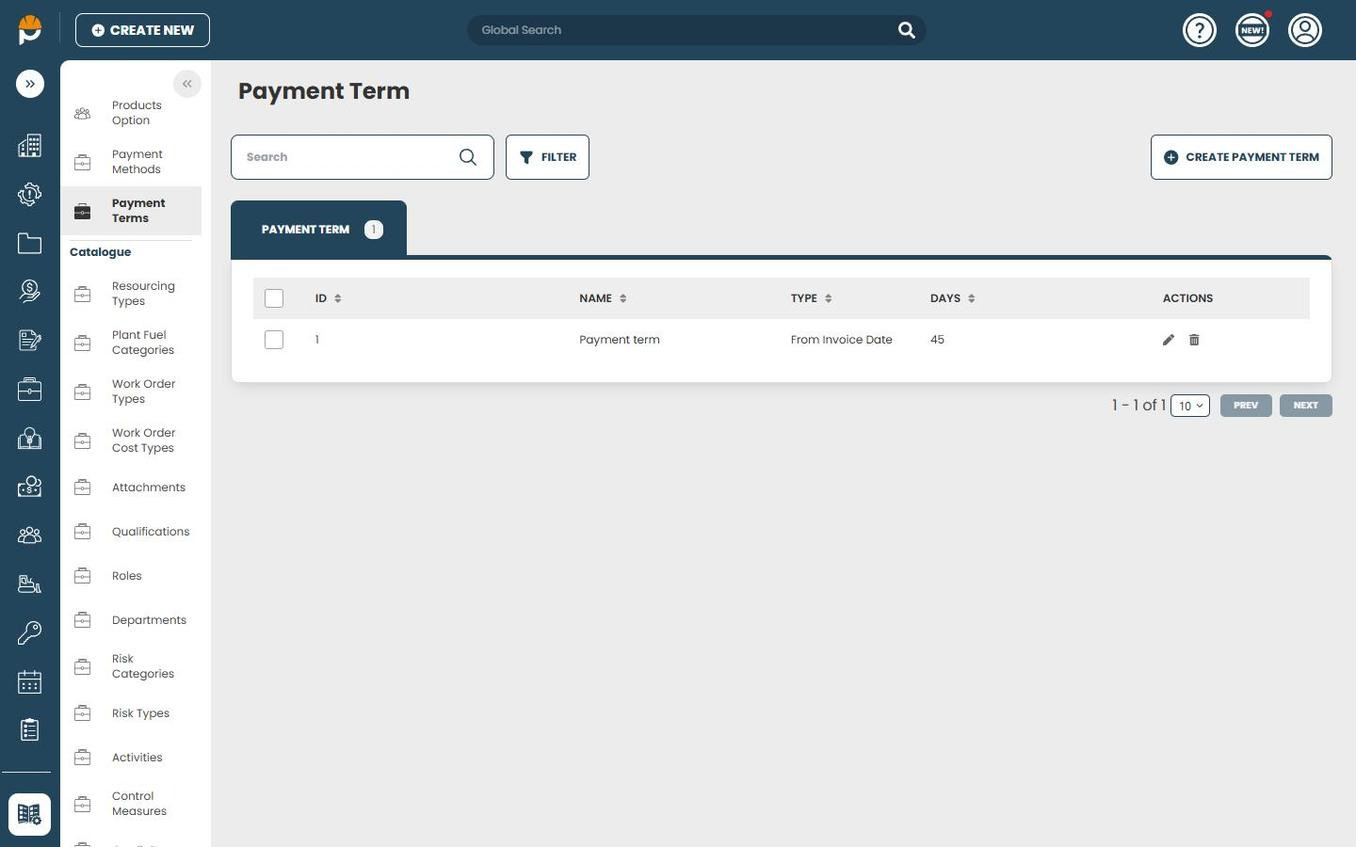
The Payment Terms list page displays all configured terms in a table with the following columns:
- ID — auto-generated unique identifier.
- Name — the label for the payment term (e.g., E30, COD).
- Type — the calculation basis, either From Invoice Date or From End of Month.
- Days — the number of days until payment is due.
- Actions — Edit (pencil icon) and Delete (trash icon).
Use the Search bar or Filter button to locate a specific term. Pagination controls at the bottom allow you to navigate through longer lists.
Default Payment Terms
The following payment terms are commonly configured:
| Name | Description | Type | Days |
|---|---|---|---|
| COD | Cash on Delivery | From Invoice Date | 0 |
| 7 | 7 Days from invoice | From Invoice Date | 7 |
| 14 | 14 Days from invoice | From Invoice Date | 14 |
| 30I | 30 Days from invoice | From Invoice Date | 30 |
| E30 | End of Month + 30 Days | From End of Month | 30 |
| E45 | End of Month + 45 Days | From End of Month | 45 |
| E60 | End of Month + 60 Days | From End of Month | 60 |
| E62 | End of Month + 62 Days | From End of Month | 62 |
Creating a New Payment Term
To add a new payment term:
- Navigate to Catalogues > Payment Terms.
- Click the Create Payment Term button in the top right corner.
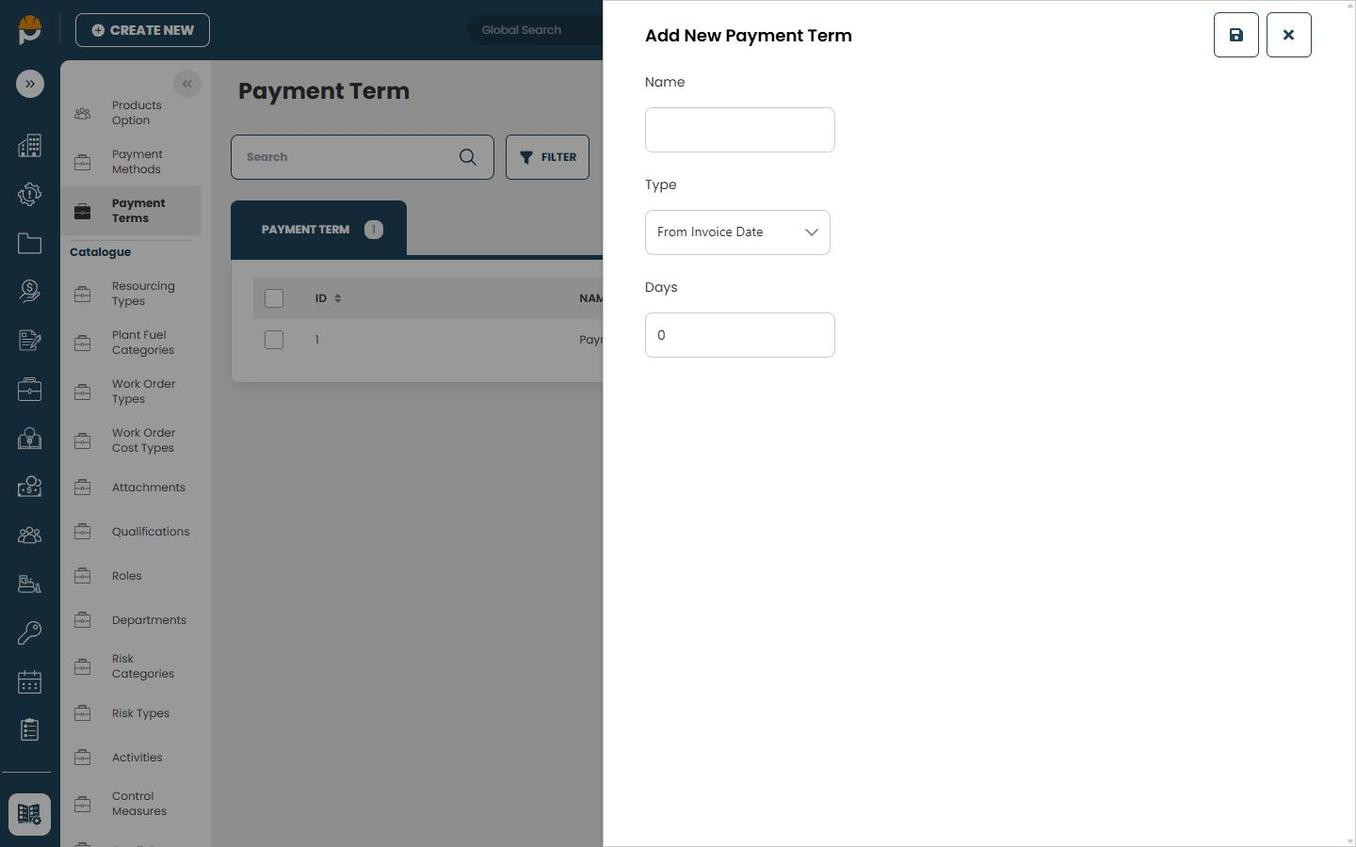
- A side panel will open titled "Add New Payment Term" with three fields:
- Name — enter a short label for the term (e.g., E90, NET30, 21).
-
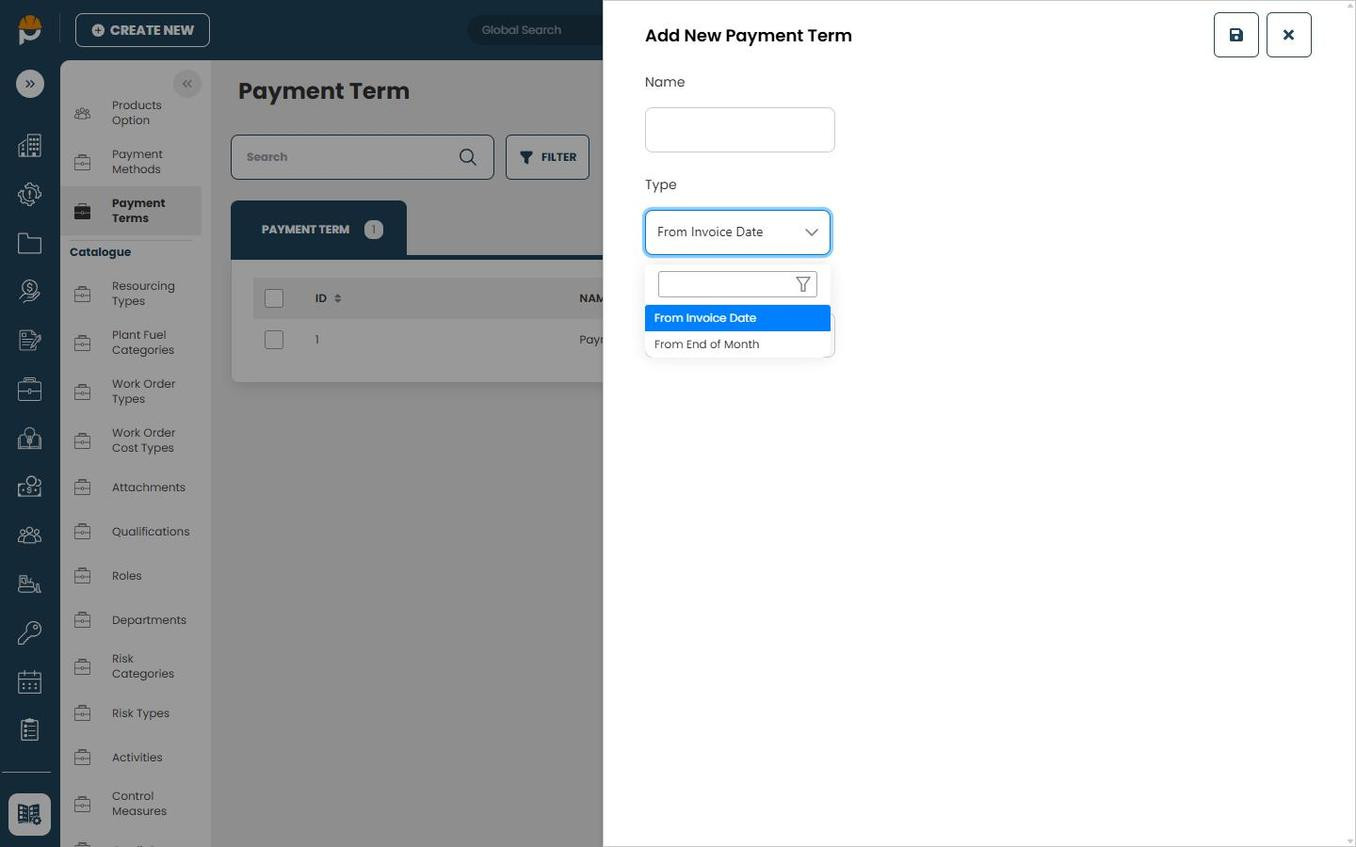
Type — select the calculation basis from the dropdown:
- From Invoice Date — the due date is calculated as the invoice date plus the specified number of days.
- From End of Month — the due date is calculated from the last day of the invoicing month plus the specified number of days.
- Days — enter the number of days (e.g., 30, 45, 90). For COD, enter 0.
- Click the Save button (disk icon) at the top right of the panel.
The Type dropdown offers two options:
The new term will immediately appear in the Payment Terms list and be available in all Payment Terms dropdowns across the system — including Company records, Invoices, and Purchase Orders.
Tip: Use a consistent naming convention. For invoice-date terms, use the number of days (e.g., 7, 14, 30I). For end-of-month terms, prefix with E (e.g., E30, E45).
Editing a Payment Term
- In the Payment Terms list, locate the term you want to update.
- Click the Edit icon (pencil) in the Actions column.
- The side panel will open with the current Name, Type, and Days values.
- Make your changes and click Save (disk icon).
Deleting a Payment Term
- In the Payment Terms list, locate the term you want to remove.
- Click the Delete icon (trash) in the Actions column.
- Confirm the deletion when prompted.
Deleting a term will not affect existing records that already have it assigned. However, the term will no longer be available for selection on new records.
Important — Integration Considerations: If you use an integration that syncs payment terms (e.g., Jobpac), the values in the source system must match the Name field in this catalogue exactly. When adding, renaming, or removing terms, ensure the corresponding value is also updated in the source system. Mismatches will result in the Payment Terms field being left blank on the Company record.
Where Payment Terms Are Used
Company Records
The Payment Terms dropdown in the Financials section of a Company record is populated from this catalogue. When a company is synced from an external system such as Jobpac, the payment terms value is matched against the catalogue entries.
See Company Fields, Financials & Payment Terms for more details.
Invoices
When creating or editing an Invoice, the Payment Terms field allows you to select from the catalogue. The selected term determines the due date calculation displayed on the invoice.
Purchase Orders
Payment terms can be assigned to Purchase Orders to define the expected payment schedule with suppliers.
Integrations (e.g., Jobpac)
When an integration such as Jobpac syncs debtor data into Prestartr, the payment terms from the source system are matched against this catalogue. If the source value does not match an existing entry, the field may be left blank.
See Jobpac Integration with Prestartr for field mapping details.